

The basic pillars of Ad Grants (that we explained before in this course) still stay the same: Choosing good keywords & audiences, creating attractive ads, sending users to relevant & optimized landing pages, etc.
But Google is launching new AI-based features (Pmax and AI Max) that could increase results for certain accounts and goals.
It’s also opening Ad Grants for the first time to ads on a new platform (Google Maps), so now it’s not only Google Search. But Maps ads are still based on keyword searches, so the paradigm is similar.
Performance Max
Performance Max (PMax) is a goal-based campaign type powered by Google’s AI. Unlike traditional Search campaigns (where you pick keywords), PMax campaigns are based on audience signals and/or search themes (which are similar to keywords, but less “precise”). On Pmax, Google’s AI have more “freedom” to decide when, where, and to whom your ads appear.
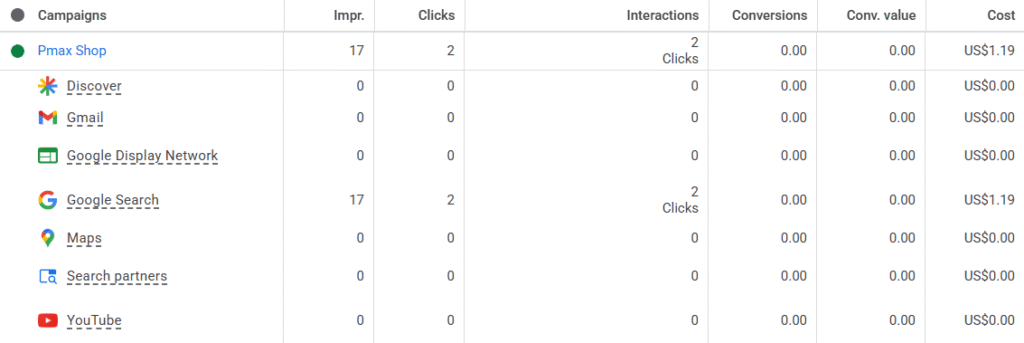
In standard (paid) Google Ads accounts, PMax campaigns can serve ads across Google’s entire inventory: Search, YouTube, Display, Discover, Gmail, and Maps. For Ad Grant accounts, it only works for Seach and Maps.
Performance Max was introduced to Ad Grant accounts in 2024-2025 and it’s now the campaign type that Google recommends in general (you will probably create a Pmax campaign if you go with the default selections when creating a new campaign)
Pmax has some important implications:
The AI Overview problem. Since 2024, Google’s AI-generated summaries at the top of search results have been reducing click-through rates across the board. Many informational queries that used to drive traffic to nonprofit websites are now answered directly on the results page. PMax gives you new ways to reach users beyond traditional keyword-based search ads.
Access to Google Maps. For the first time, Ad Grant accounts can serve ads on Google Maps, but only through PMax campaigns. Standard Search campaigns cannot access Maps placements. This is especially powerful for nonprofits with physical locations.
Overcoming keyword volume limits. Many nonprofits operate in niches where search volume is low. PMax’s AI-driven targeting can discover relevant audiences that keyword-based campaigns miss, helping you spend more of your monthly grant effectively.
⚠️ Warning
The Google Ads interface may show that PMax covers YouTube, Display, Gmail, and Discover. For Ad Grant accounts, this is currently misleading. As of early 2026, PMax for Ad Grants only places ads on Google Search and Google Maps. Video assets you upload will NOT be served. Google may expand to more inventory in the future, but for now, plan accordingly.
1. How PMax Differs from Search Campaigns
Understanding the fundamental differences between PMax and Search campaigns will help you decide when to use each type and how to get the best results.
| Search Campaigns | Performance Max | |
| Targeting method | You select specific keywords | You provide audience signals (demographics, interests, intentions) and/or search themes |
| Ad format | Text ads only (RSAs) | Google assembles ads from your asset library (text, images, logos) |
| Where ads appear | Google Search only | Google Search + Google Maps (in Ad Grant accounts) |
| Bidding control | Manual CPC ($2 cap), or Smart Bidding | Smart Bidding only (Maximize Conversions or Maximize Conversion Value) |
| Structure | Campaigns → Ad Groups → Keywords + Ads | Campaigns → Asset Groups → Assets + Signals |
| Keyword control | Full control over which queries trigger ads | No keywords; you provide “Search Themes” as hints |
| Transparency | Detailed keyword and search term data | Less granular; improving over time with new reports |
PMax does not replace Search campaigns (at least for now). The most effective Ad Grant strategy might be to run both types simultaneously. Here is a practical framework for deciding:
Use PMax when:
- you have a physical location and want Maps visibility
- your account is not spending the full $10,000/month
- you operate in a niche with limited search volume
- you want to reach users based on demographics or life events rather than specific search terms
Use Search campaigns for:
- keyword-specific topics where you want maximum control
- topics where you need precise negative keyword management
- campaigns that are already performing well and fully spending their budget
- situations where you need detailed search-term-level reporting
Consider trying both simultaneously. Google tends to favor PMax campaigns when both types are running. This can help increase overall grant utilization, but might also have negative effects (e.g. CPA and/or CPC increase). Start by adding PMax alongside your existing Search campaigns rather than replacing them, and compare results.
2. Setting up a PMax Campaign
2.1. Campaign goals and naming
When creating a new PMax campaign, you’ll be asked to choose a goal. For Ad Grant accounts, the recommended approach is to select “Create a campaign without a goal’s guidance”. This prevents Google from overly influencing your settings with automated recommendations that may not suit nonprofit goals.
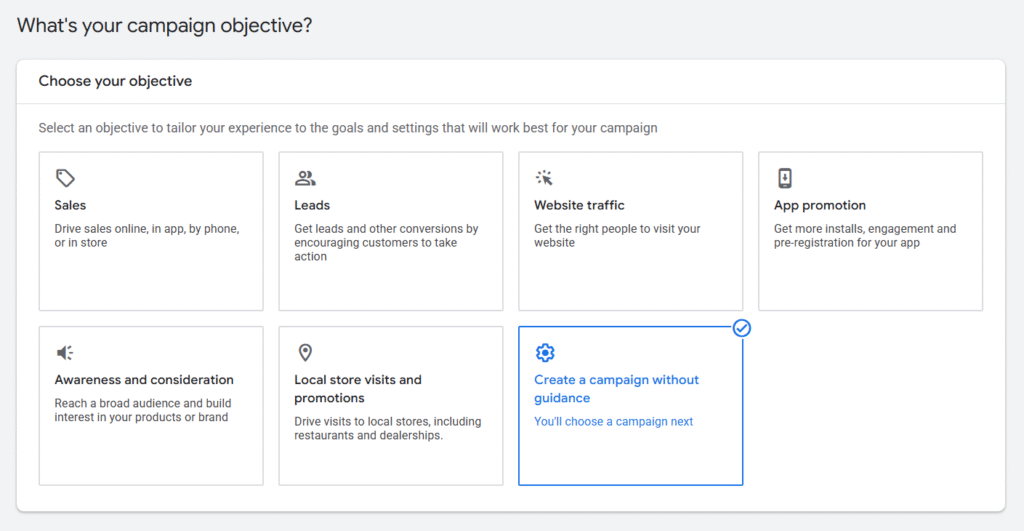
Use a clear naming convention to keep your account organized. A prefix like PMAX – [Topic] (for example, “PMAX – Teacher Resources”) makes it easy to filter and distinguish PMax campaigns from your Search campaigns.
2.2. Bidding strategy
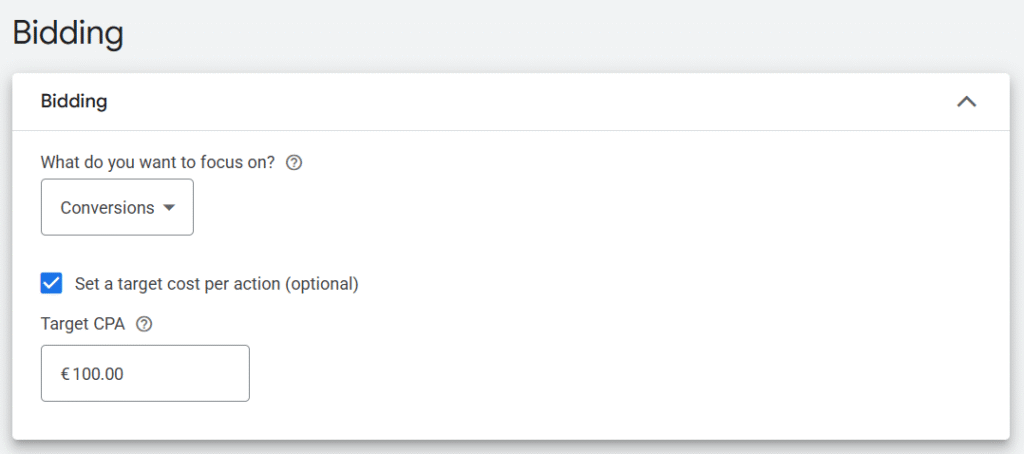
PMax only supports Smart Bidding strategies. The two available options are:
| Strategy | Best For | Notes |
| Maximize Conversions | Most nonprofits | Google will try to get as many conversions as possible within your budget. This is the recommended default for Ad Grant accounts. |
| Maximize Conversion Value | E-commerce or donation-focused orgs | Only useful if you assign very different values to different conversions (e.g., a $100 donation vs. a newsletter signup valued at $1). |
About Target CPA: You can optionally set a Target Cost Per Action. Setting a high Target CPA might increase visibility (impressions and clicks), but could also raise your average CPC and CPA, so you have to use it with caution. You might want to wait for a few months and check your average CPA before setting a Target CPA. Setting a target too early (or too low) will prevent your campaign from spending effectively.
2.3. Geographic and Language Targeting
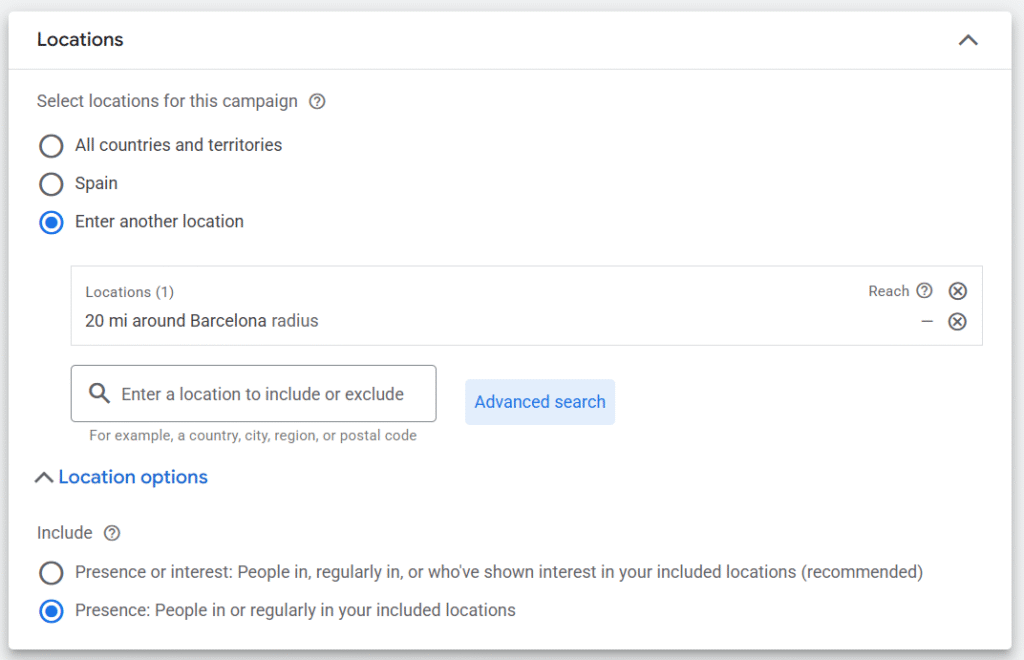
Locations: Avoid targeting entire countries unless your nonprofit truly serves a national audience. Instead, define specific states, regions, or use Radius Targeting (e.g. 50 miles around your city). The more specific your geographic targeting, the more relevant your traffic.
Location option: Set this to “Presence” (people who are in or regularly in your targeted locations), not “Interest.” The “Interest” setting can show your ads to people anywhere in the world who have shown interest in your location, which may waste grant budget.
Languages: Don’t add many languages in the same Pmax campaign. If you serve audiences in multiple languages (for example, English and Spanish), you should create separate PMax campaigns for each language with assets written in that language.
3. Asset Groups: Building Your Ad Creative
PMax uses “Asset Groups” instead of Ad Groups. An Asset Group is a collection of creative elements (text, images, logos) organized around a single theme or goal. Google’s AI mixes and matches these assets to create the most effective ad for each user.
3.1 Text Assets
| Asset Type | Max Count | Character Limit |
| Headlines | 15 | 30 characters |
| Long Headlines | 5 | 90 characters |
| Descriptions | 5 | 90 characters |
Fill every slot. Google recommends providing the maximum number of assets. The more variations you give the AI, the more combinations it can test and find the best one. Aim for at least 10 headlines, 4 long headlines, and 4 descriptions.
Google may have pre-filled some of those fields with their AI system. Double-check all of them (some might great and others awful). Consider adding headlines and other text from your landing page here (so there is a good match between what users see in the ad and in the landing page).
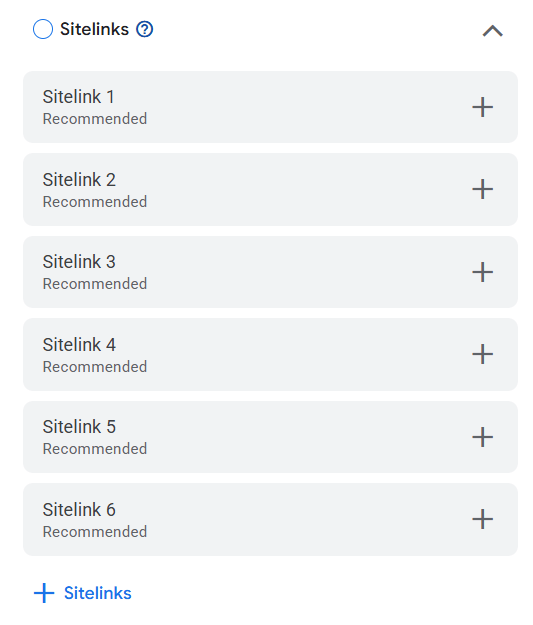
You can also include sitelinks here (which will be only applied to this Pmax campaign), but that might not be necessary if you already have +4 sitelinks at the account level that are also relevant for this campaign. Don’t duplicate the same sitelinks at the campaign and account levels. Don’t create too many sitelinks (between 6 and 8 per campaign is usually the best).
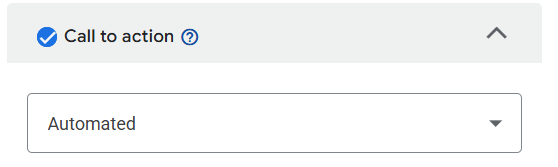
Call to Action (CTA): Select a specific button like “Learn More,” “Sign Up,” “Download,” or “Donate.” Choose the CTA that matches your landing page’s primary action or leave the default option (“Automated”).
3.2. Asset optimization
“Final URL Expansion” (inside Text optimization) is probably the most important setting in a Pmax campaign and Google’s explanation might be confusing for many users (they recommend it a lot). If you turn it on, your Pmax campaign can start promoting basically any page on your website. Google’s AI will also generate ad copy that matches the new landing page.
So you configure 1 landing page and usually assets focused on that page, but then Google’s AI can decide to promote dozens of other pages with very different texts/ads. Final URL Expansion can send valuable traffic to pages that you don’t want to promote at all (such as blog posts without valuable CTAs, old event pages, etc.).
It turns a Pmax campaign into something similar to a Dynamic Search Ads campaign, where AI decides which pages to promote (not you directly).
You can use URL exclusions to block specific pages from being used as landing pages, so you still have some control, but requires a careful setup and frequent reviews of the landing pages that are getting traffic from that Pmax campaign.
Turning on Final URL Expansion makes sense if you want to create a very flexible campaign (driven by Google’s AI) that can promote many different pages for many different searches. But if you only want to promote a specific page, you should turn this off (you have to remember this, because it’s always turned on by default).
You can use “Text optimization” without Final URL Expansion. This makes sense if you think AI could create better headlines & descriptions than the ones that you configured manually. Sometimes AI find great ideas, sometimes they create awful or irrelevant texts, so it’s a small gamble. But it usually don’t have a huge impact and it’s certainly not as important as the “Final URL Expansion” setting.
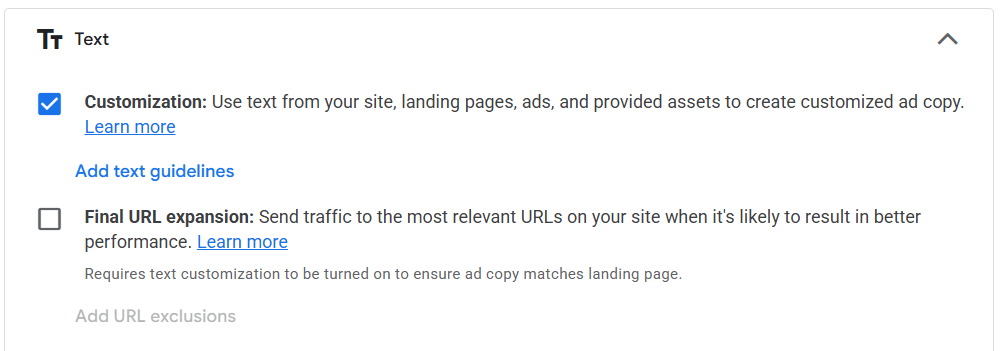
Image and Video Enhancement options are not important. You can leave them on if you want (video won’t apply at all for Ad Grants and image could help a bit with ad performance but usually not a lot).

3.3 Visual Assets
Logos: You need both rectangular and square versions. Use high-quality, multi-format logos. These appear alongside your ads to build brand recognition.
Images: You can upload up to 20 images. Use authentic photos from your organization. Avoid generic stock photos or AI-generated imagery. Authenticity builds trust and better represents your mission.
Videos: The campaign setup will ask you to add videos for “Ad Strength” scoring purposes. However, videos are NOT currently served in Ad Grant PMax campaigns. You can skip videos without affecting real-world performance. If Google auto-generates a video from your assets, it will not be shown to users through the grant.
4. Targeting with Audience Signals
This is the most important strategic element of PMax. Instead of keywords, you provide “signals”: Hints to Google’s AI about the type of person most likely to be interested in your campaign. Signals are not hard filters. Google uses them as a starting point and then expands to find similar users who are likely to convert.
4.1 Search Themes
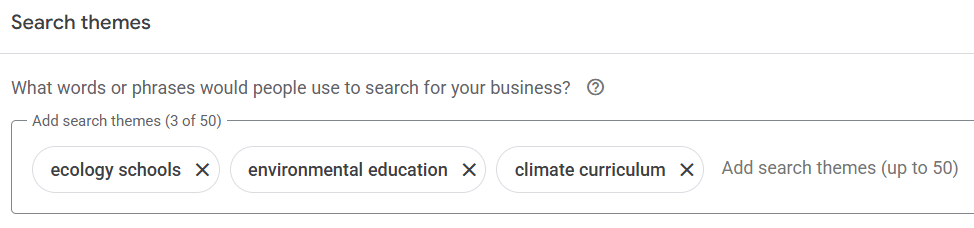
Search Themes are general topics relevant to your campaign. They are NOT keywords, but they are related, they provide topic guidance to the AI. For example, if you’re running a campaign for environmental education resources, your Search Themes might include: “ecology schools”, “environmental education” or “climate curriculum”.
Think of them as topics related to your campaign, not the exact phrases someone would type into Google.
4.2 Data-Driven Signals
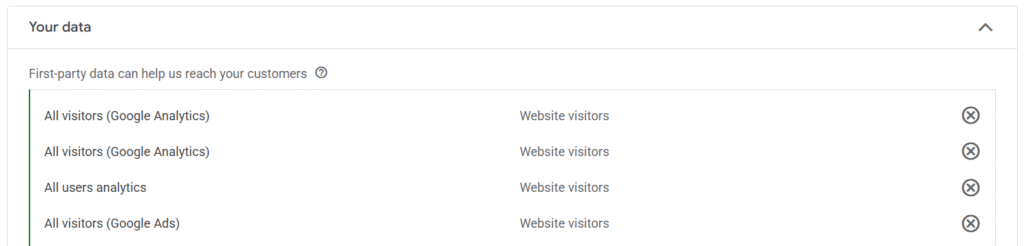
If you have Google Analytics connected, you can use your existing website visitor data. They can be the generic audiences that Google analytics generate by default or specific segments that you built.
PMax will analyze these visitors and find new users who share similar characteristics. This is one of the most powerful signals available. You can target all your website visitors or specific segments (eg. Users that have completed a purchase or donation, visited a certain page or section of your website, etc.)
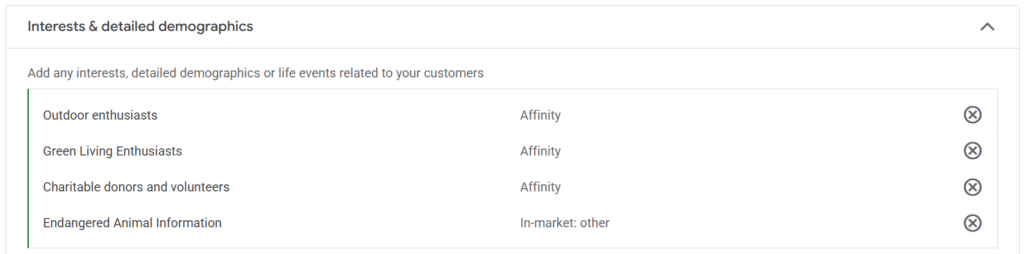
4.3 Demographic and Interest Signals
Google has predefined audiences based on interests and other signals that might be a good fit for your campaigns.
In-Market audiences: These are people Google has identified as actively looking to take a specific action. For example, people in-market for “volunteer opportunities” or “charitable donations.”
Life Events: You may target people during major transitions, such as starting a business, getting married, moving to a new city, retiring. These life moments often create new needs that nonprofits can address.
Detailed Demographics: This is useful for professional targeting. For example, teachers can be reached through the “Employment → Industry → Education” sub-category. Parents can be targeted by parental status. These demographics help narrow your reach to the right audience.
ℹ️ Tip
Create separate Asset Groups for different audience segments rather than bundling all signals into one. For example, have one Asset Group targeting teachers (with education-focused assets and demographic signals) and another targeting parents (with different messaging and life-event signals). This gives you clearer performance data and allows Google to optimize each combination independently.
5. Monitoring and optimization
After launching a PMax campaign, it enters a “learning phase” where Google’s algorithm gathers data and optimizes delivery. During this period (which can last several weeks), avoid making edits to the campaign. You’ll see the campaign status as “Bid strategy learning.” Once it changes to “Eligible,” the learning phase is complete.
Key Reports to Monitor:
- Asset Performance Report: Each asset (headline, description, image) receives a rating of “Best,” “Good,” or “Low.” Replace low-performing assets every few months. Don’t just remove them—replace them with new variations.
- Channel Performance Report: Shows the split between Search and Maps impressions, clicks, and spend. This helps you understand where your ads are being shown.
- Search Term Insights: PMax now provides search theme categories that show what types of queries are triggering your ads. While not as granular as Search campaign reports, this data is improving and helps you understand audience behavior.
- Audience Insights: Under the Insights tab, Google shows which audience segments are converting best. Use this data to refine your signals and create new Asset Groups targeting high-performing segments.
Google Maps
One of the most exciting features unlocked by PMax for Ad Grants is the ability to place ads on Google Maps. This was announced in 2025 and represents the first time Ad Grant accounts can reach users beyond traditional search results.
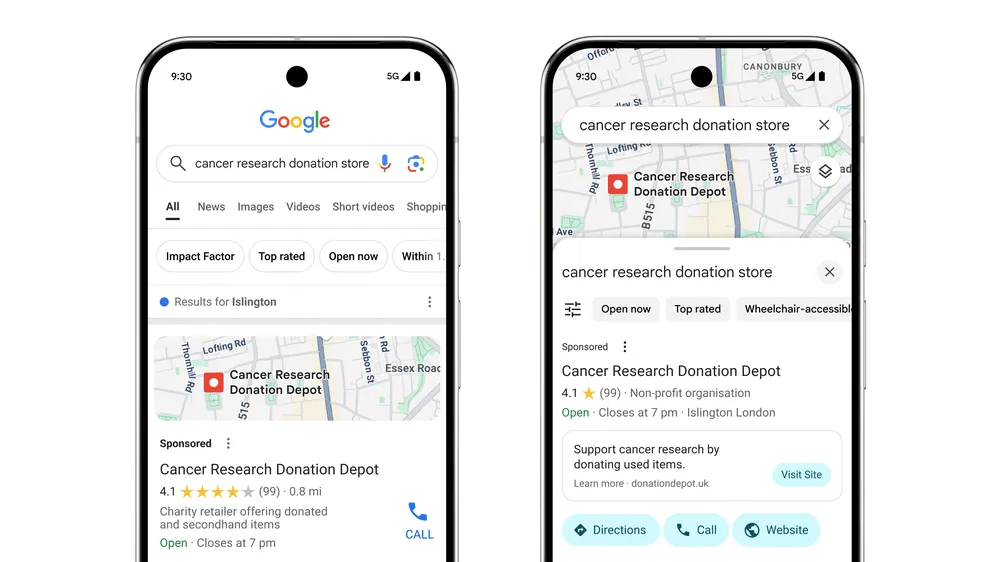
For nonprofits with a physical presence, Maps ads are a high-value, low-competition opportunity. Currently very few charities are currently using their Ad Grants for Maps placements, which means less competition and more visibility for organizations that take advantage of it.
Types of nonprofits that benefit most from Maps ads include cultural institutions (museums, galleries), service-based organizations (animal shelters, community centers, food banks), religious institutions (churches, mosques, synagogues), charity retail (thrift stores, charity shops), and environmental or tourism organizations (walking tours, outdoor sites, nature reserves).
Even if your nonprofit’s primary work is not place-based, having a physical office or storefront means you can benefit from local visibility. Maps ads surface when people search for services, organizations, or locations in your area, and they include rich information such as opening hours, reviews, and directions.
1. How to set up Maps Ads
Maps ads require two components working together: a verified Google Business Profile and a PMax campaign with location assets enabled.
Step 1: Google Business Profile (GBP)
Your Google Business Profile is the foundation. You should claim an existing profile or create a new profile for your organization (or each location you want to promote). Ensure it includes your correct name, appropriate category, physical address, phone number, up-to-date photos, and accurate opening hours.
Google Ads might let you promote a profile that you don’t own, but usually you want to promote only locations that you own and can optimize (with the right description, links, opening hours, etc.).
Step 2: Connect the Location Asset
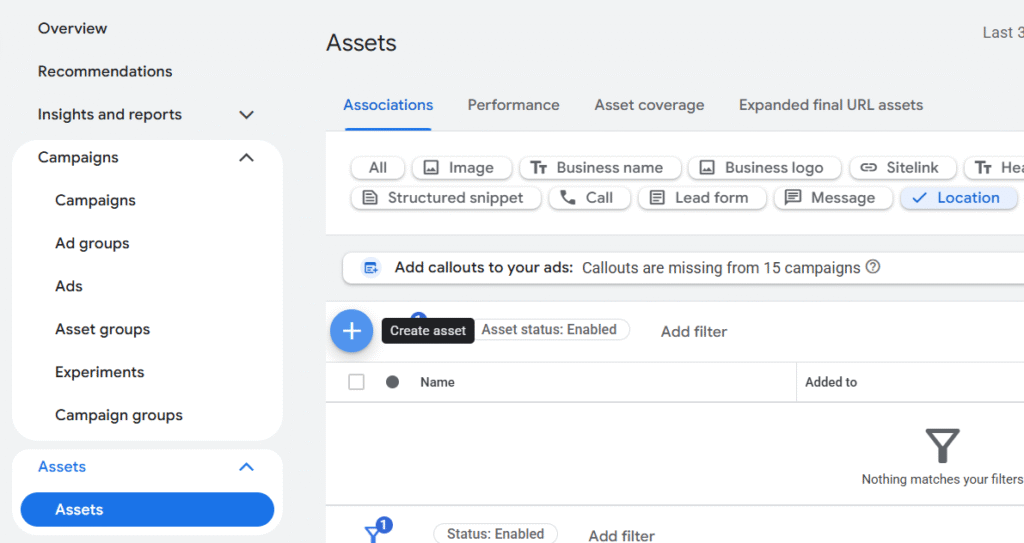
In your Google Ads account, navigate to the Assets menu, select the “Location” asset type, and link your Google Business Profile to your Google Ads account. Location assets are typically added at the account level. Only set them at the campaign level if your organization has multiple locations and needs to show different addresses for different campaigns.
Step 3: Run a PMax Campaign
Standard Search campaigns cannot create Maps ads. You must use a PMax campaign. Once your Google Business Profile is linked and the Location Asset is active (for all your account or that specific Pmax campaign), PMax will automatically begin serving ads on Maps when appropriate.
2. What info is shown on Maps Ads
Maps ads combine data from two sources:
| Source | What It Provides |
| Your PMax Campaign | Primary ad copy and text descriptions (from your Asset Group) |
| Google Business Profile | Organization name, category, address, phone number, opening hours, accessibility details, ratings, and reviews |
| Google Maps Interface | Distance to location, “Directions” button, “Call” button, and “Save” functionality |
The result is a rich, interactive listing that goes far beyond a standard text ad. Users can immediately see where you are, when you’re open, how far they need to travel, and take action (get directions, call, save) directly from the ad.
3. Tracking Maps performance
When Maps ads are active, Google automatically tracks specific local conversions:
- Get Directions: How many users requested a route to your location.
- Shop Visits: Google estimates physical visits to your location using location data.
- Other Engagements: Actions like saving your location on Maps or sharing it with others.
You can view a Channel Performance Report (under Insights and Reports) to see how your budget and impressions are split between Search and Maps.
AI Max
AI Max is not a new campaign type. It is an optional suite of AI-powered features that you can toggle on inside your existing Search campaigns. Think of it as an automation layer: your Search campaigns keep their structure, keywords, ad groups, and settings, but AI Max adds automation capabilities on top.
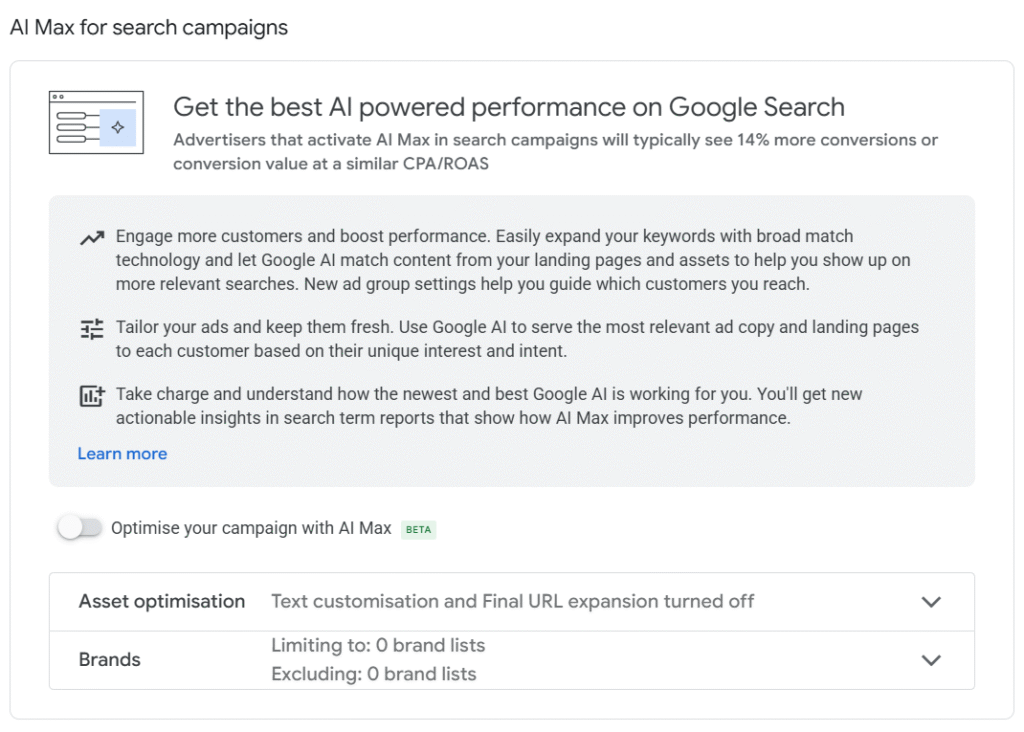
It gives some automation options that were only available for Pmax campaigns, that you can now add to “normal” Search campaigns if you want to give it new AI features.
AI Max might be interesting if you are not spending all your Ad Grants budget and want to use AI to explore other keywords and pages that could generate extra conversions.
It’s probably not interesting if you are already getting good results (spending all your budget and getting many conversions) or if you want total control over your campaigns (manually configure all the keywords, ads and landing pages).
1. Settings
For Ad Grants accounts, it gives the following options:
- Text Customization: This feature uses generative AI to create customized headlines and descriptions in real time, adapted to each user’s search intent. It pulls content from your landing pages, existing ads, and keywords to generate relevant ad copy on the fly.
- Final URL Expansion: Google automatically sends users to the most relevant page on your website based on their search query, even if that page isn’t the one you originally specified. The AI matches the landing page to the user’s intent and generates ad copy to match. Inside this option, you can exclude certain URLs.
- Brand Inclusions: Specify which brands your ads can be associated with. Available at both campaign and ad group level. For example, a nonprofit animal shelter might include partner brands like local pet supply stores.
- Brand Exclusions: Prevent your ads from appearing alongside specific brands that conflict with your mission. Available at the campaign level. For example, an environmental nonprofit might exclude fossil fuel companies, or an animal rescue might exclude breeder brands.
2. AI Max vs. Performance Max
A common point of confusion is the relationship between AI Max and Performance Max. They use the same underlying tech (Google’s AI systems) and share some settings, but they serve different purposes:
| AI Max | Performance Max | |
| What it is | An optional feature layer you toggle ON inside an existing Search campaign | A separate, standalone campaign type |
| Campaign structure | You keep your existing keywords, ad groups, ads, and settings | No keywords. You create Asset Groups with creative assets and audience signals |
| Where ads appear | Google Search only (including AI Overview and AI Mode placements) | Google Search + Google Maps (in Ad Grant accounts) |
| How targeting works | Expands your existing keywords using AI; you retain keyword-level control | No keywords at all; you provide audience signals and Search Themes as hints |
| Ad creative | AI dynamically customizes your existing RSA headlines and descriptions; can also auto-generate new ones | Google assembles ads from your full asset library (text, images, logos) |
| Control level | Medium: Not as high as without AI Max, but you keep keywords, ad groups, negative keywords, and can toggle each AI Max feature independently | Low: Google’s AI controls most targeting and placement decisions |
| Reporting transparency | Detailed: search terms, headlines, URLs, and “AI Max” match type labels | Less granular; improving but still a “blacker box” |
| Best for | Keyword-specific topics, campaigns where control matters | Broad audience reach, physical locations (Maps), niches with low keyword volume |
⚠️ Watch for Cannibalization
When running Search campaigns with AI Max alongside PMax, there is potential for the two to compete for the same queries. Monitor your search term reports across both campaign types. If you see significant overlap, consider adjusting search themes in PMax or disabling Search Term Matching in AI Max for the overlapping ad groups. The goal is for each campaign type to reach different users, not compete for the same ones.
Key Takeaways
- Performance Max is a complement, not a replacement. Consider running PMax alongside your existing Search campaigns. The two work differently and reach different segments of your audience.
- Audience signals are key for Pmax. Invest time in defining the right signals: website visitor data, demographic targeting, in-market audiences, and life events. They open new opportunities to connect with your target audiences, that were not available in the old Search campaigns. The quality of your signals directly impacts campaign performance.
- For Ad Grants, PMax = Search + Maps only. Despite what the interface shows, your ads will appear on Google Search and Google Maps. YouTube, Display, Gmail, and Discover are not available through the grant.
- Maps ads might be an important opportunity. If your nonprofit has a physical location, setting up Maps ads through PMax is one of the highest-value, lowest-effort strategies available. Very few nonprofits are using it, which means low competition and high visibility.
- Using Final URL Expansion is not recommend for most campaigns. It’s activated by default for Pmax and AI Max, but it can waste valuable visitors and budget on pages that you don’t want to promote at all.
- The search landscape is changing. AI Overviews, AI Mode, and conversational queries are reshaping how people find information. Nonprofits will need to adapt their Ad Grant strategy to these changes to maintain visibility. Pmax and AI Max open new opportunities. Pmax might even be the only type of campaign in the future.